How to play · Section 8 of 9
Cinematics
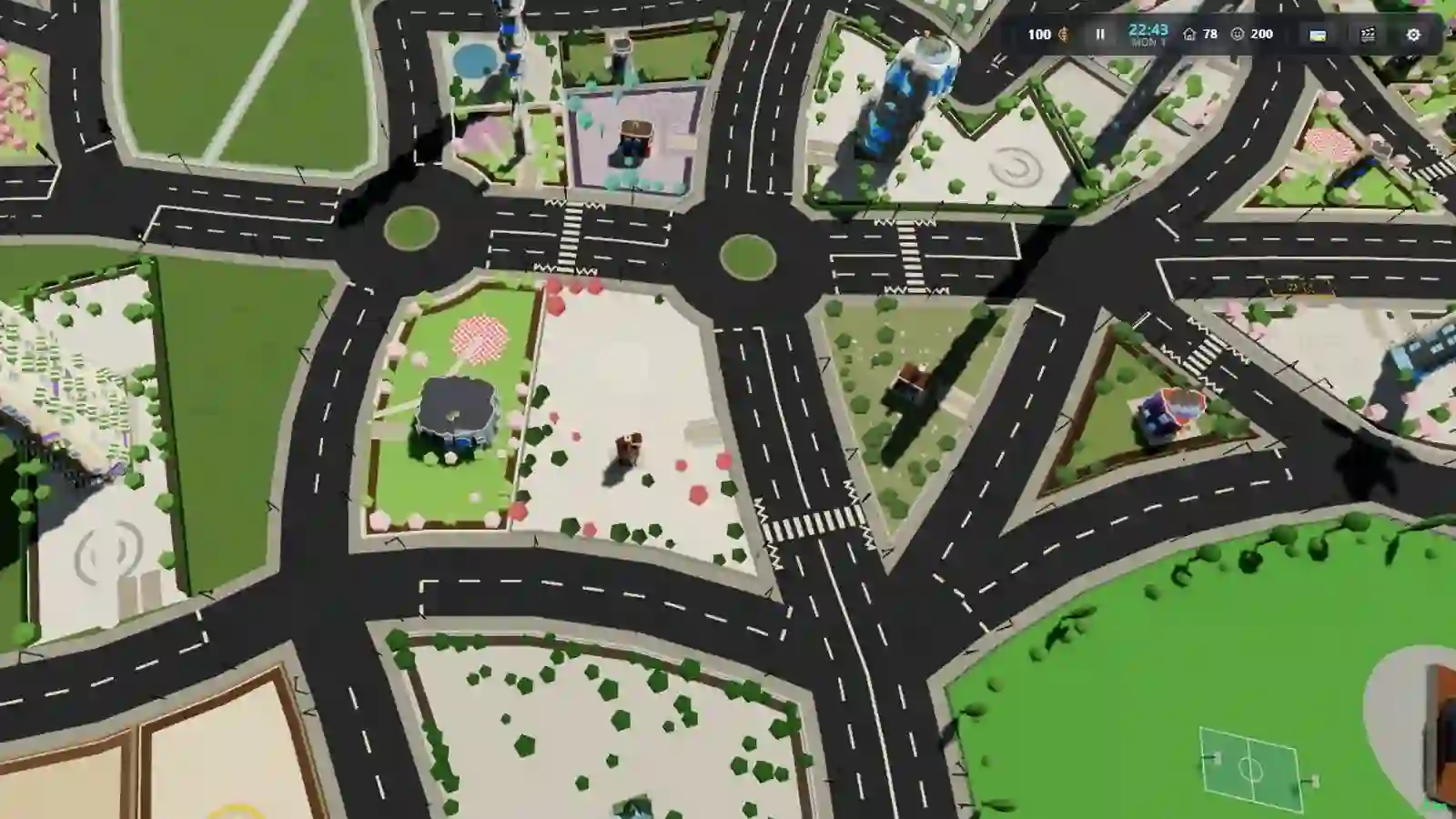
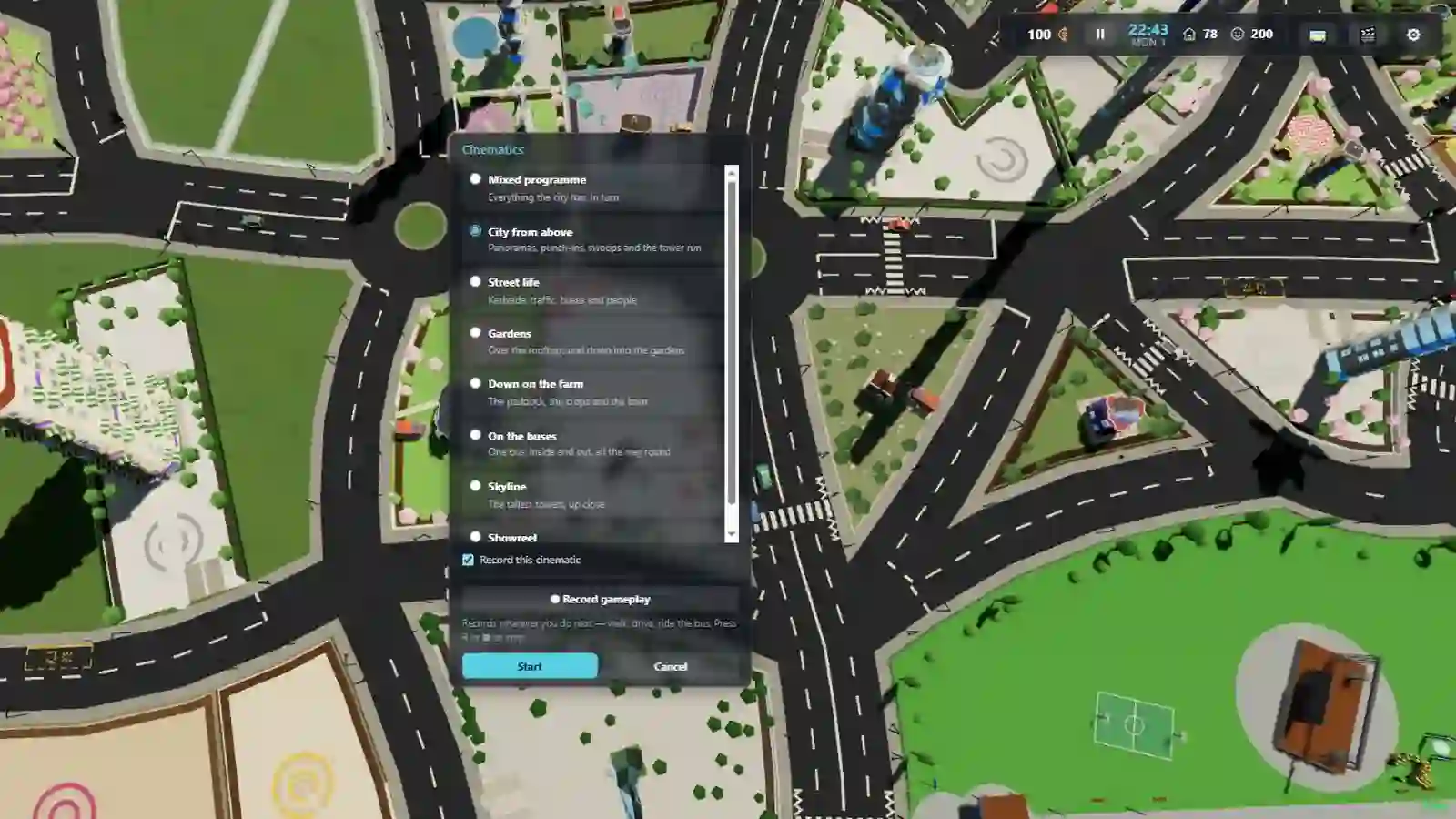
The 🎬 button in the top bar opens Cinematics. From there the game will either direct the camera for you, or get out of the way and record whatever you do next. They are two different things sharing one dialog.
Watch this section in the tour →
Let the game direct
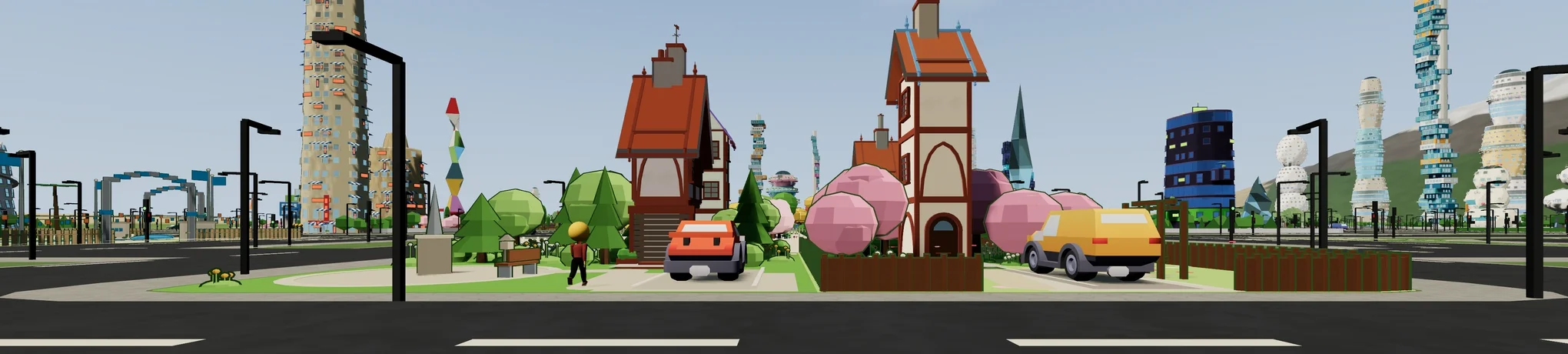
The dialog lists its programmes — each one a different way of moving a camera through your city: down at street level, up and over, following somebody, holding on a panorama. Each has a line under it saying what it does. Pick one and press Start, and the camera takes itself away and shoots the city.
Tick Record this cinematic before you start and the run is captured as well as played, for exactly as long as that programme lasts. You do not have to stop it — it stops itself.
The programme list is read from the game, not from this page, so what you see in the dialog is always the current one.
Or direct it yourself
Below the programmes is ⏺ Record gameplay, and it does what it says: it records
whatever you do next — walk, drive, ride the bus, build a road. Nothing takes the
camera off you. Press R or ⏹ when you are done.
R works outside the dialog too, so you can start and stop a free
recording without opening anything.
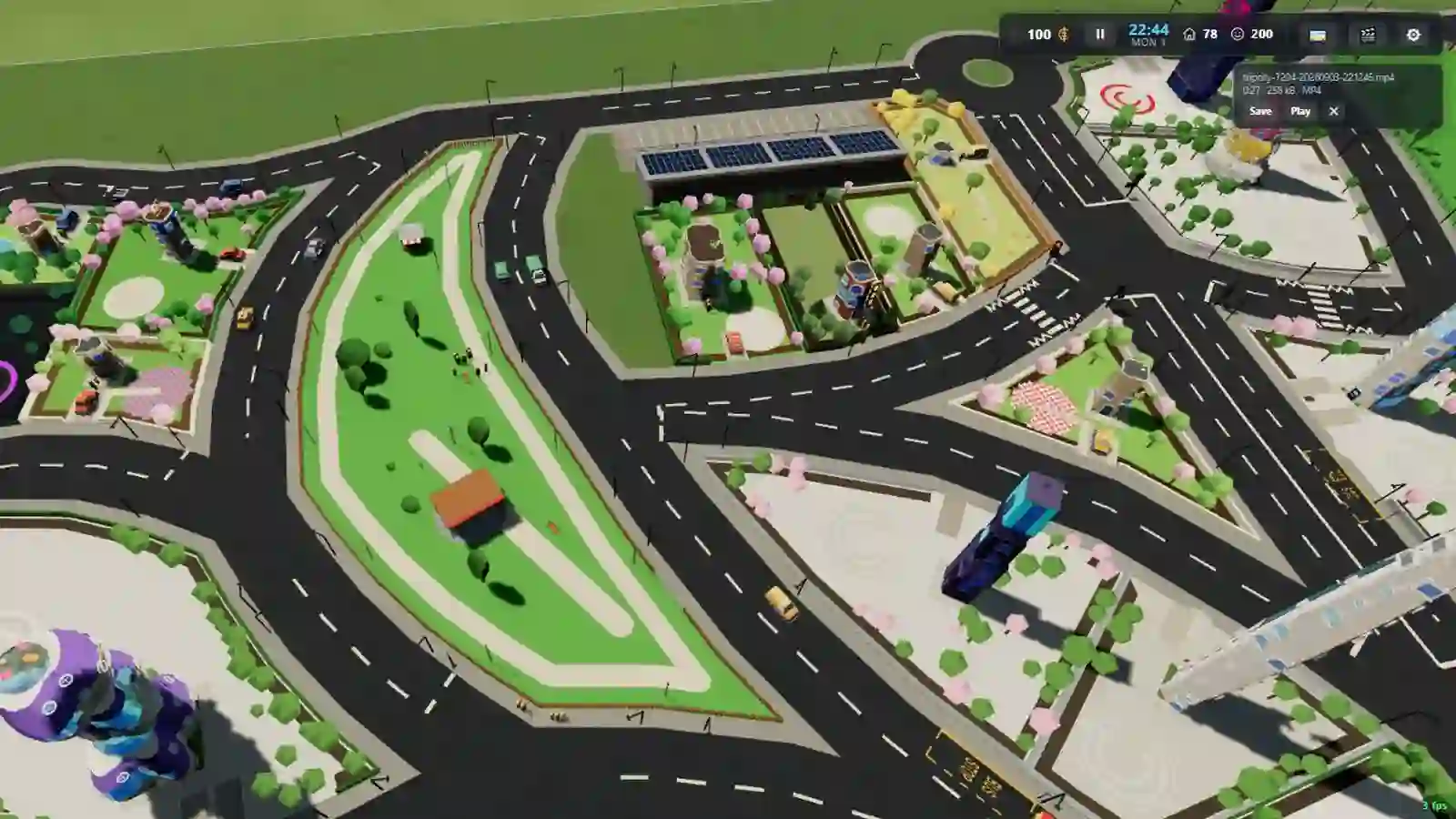
Either way the finished clip lands in the takes panel and downloads itself. Keep an eye on it: the panel holds only the last few takes.
What it can and cannot do
Recording captures the game canvas, so it captures the city and not the HUD panels over it — a cinematic comes out clean. It also stops on its own at a time and size limit, so a forgotten recording cannot fill your disk.
Some browsers cannot record a canvas at all. If yours cannot, Trip City says so rather than pretending to record.